Enabling the selection from the Person Register on AssureGO+
What is it?
Enabling the person register on AssureGO+ allows your mobile, logged in users to select a person directly from your person register. This means frontline users can complete DSE assessments, Injury Accidents, Equipment Issue, Health Surveillance, or other forms on mobile, and immediately link the correct person before submitting.
Users need to be online and logged in to see the person register
This functionality can be enabled on a questionnaire by questionnaire basis so you can control when your person register is visible.
This feature is available on the following modules:
- Employment History
- Health Surveillance
- Driving License Details
- Audit
- Activity Risk Assessment
- DSE Assessment
- Noise Assessment
- Job Hazard Analysis
- Incident Record
- Equipment Issue
- Air Emissions
- Release to Water
- Land Contamination
If a user is not logged in or offline, they will not be able to access the register as they are not authenticated. They will have the option to manually enter the name of the person.
For more information on the difference between authenticated and unauthenticated access to AssureGO+ please read this article:
Any user can be set up with a user account to AssureGO+ so they can authenticate, even if they do not have a license for Assure.
For a reminder on how to create and manage AssureGO+ questionnaires: How to configure questionnaires
How does it work?
Follow these steps to enable the person register:
- Adding the register to an existing questionnaire:
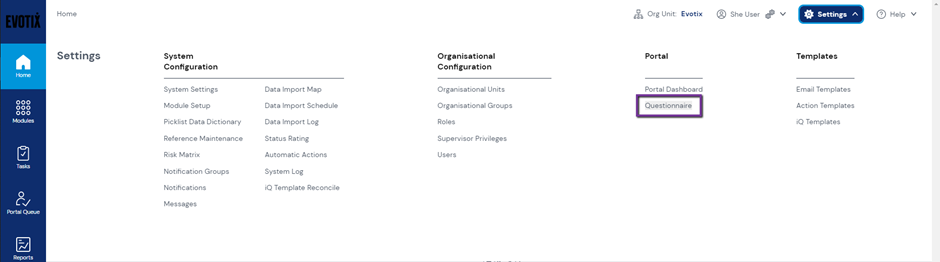
Go to Settings > Portal > Questionnaire
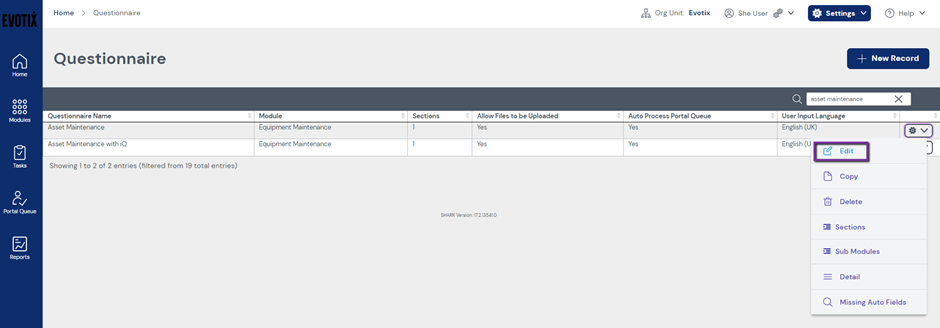
Edit the questionnaire:
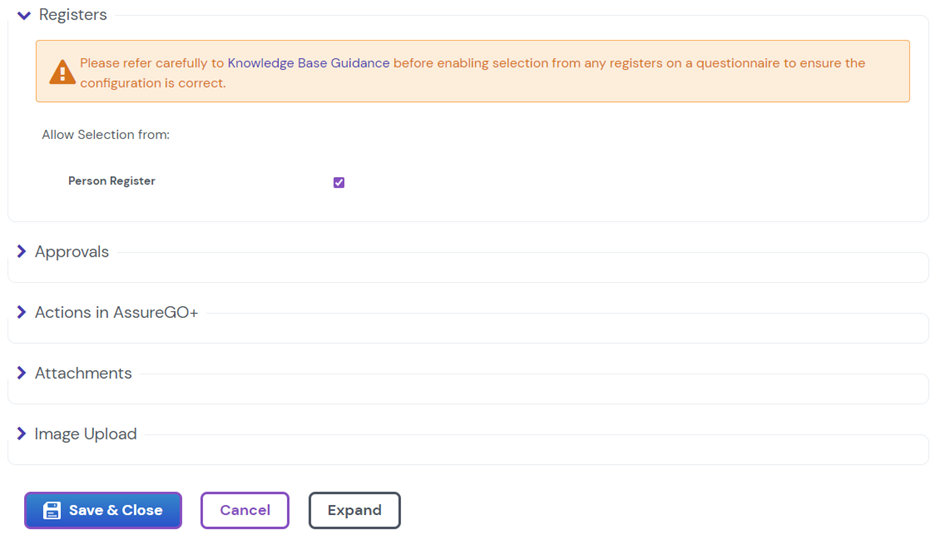
Scroll down to the Registers sections and select Person Register
The key field for the register selection is the person reference field. This field must be included in the questionnaire to have the ability to select from the register.
- When creating a new questionnaire
Go to Settings > Portal > Questionnaire
Build your questionnaire and add it to AssureGO+ :
How To Configure Questionnaires
The key field for the register selection is the person reference field. This field must be included in the questionnaire to have the ability to select from the register.
Note:
How the questionnaire behaves will depend on the module:
People modules:
- These modules require a person to be selected for the record to be created.
- If an authenticated user selects from the register, this record can auto process into the corresponding module.
- If an unauthenticated user completes the form, or an authenticated user manually enters the person reference, the record will enter the portal queue and will need manual intervention to be processed.
With this feature used, more forms will be able to be auto processed.
Other modules:
For the modules listed below, the link to the person register is optional. This means the questionnaire should follow the path determined in the questionnaire set up. It can auto process for both authenticated and unauthenticated users, regardless of whether the user has selected from the person register or not. Using this feature ensure that more accurate information in provided immediately when submitting the form.
- Activity Risk Assessment
- DSE Assessment
- Noise Assessment
- Job Hazard Analysis
- Incident Record
- Equipment Issue
- Air Emissions
- Release to Water
- Land Contamination
How does it look on AssureGO+
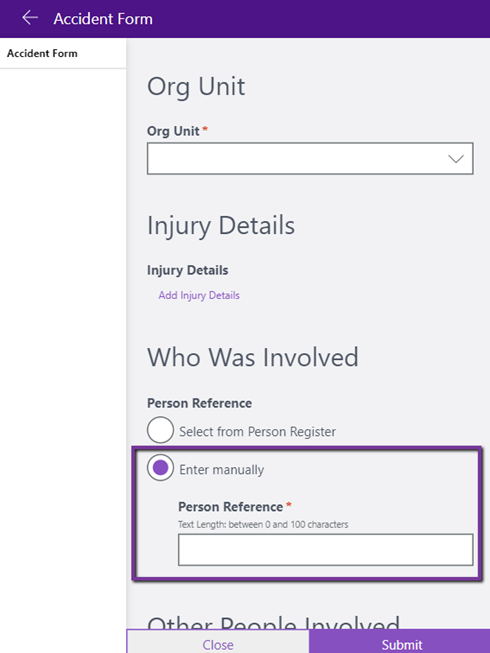
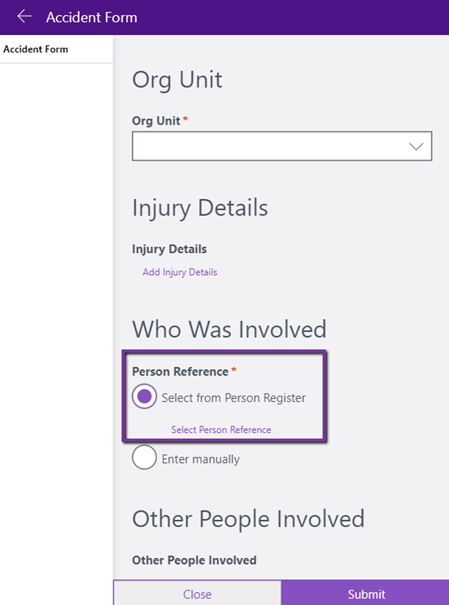
- Person register is visible. The user that is logged in has the option to Select from the list or to Enter Manually.
If offline or unauthenticated the user will only have the option to Enter Manually
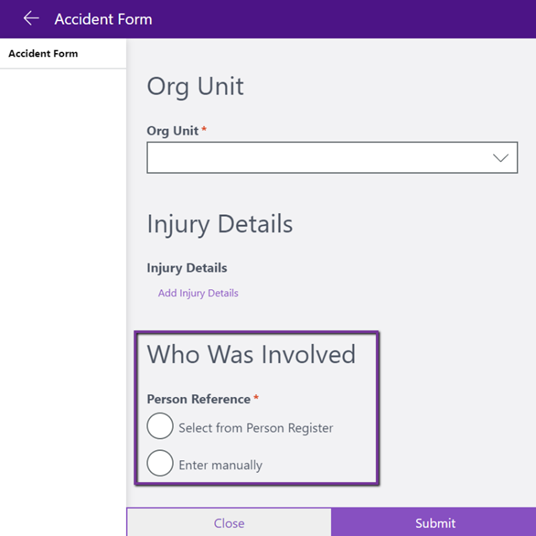
- When entering manually the user can type the person reference
- When selecting from a list, the person register will display to search and choose the correct person.
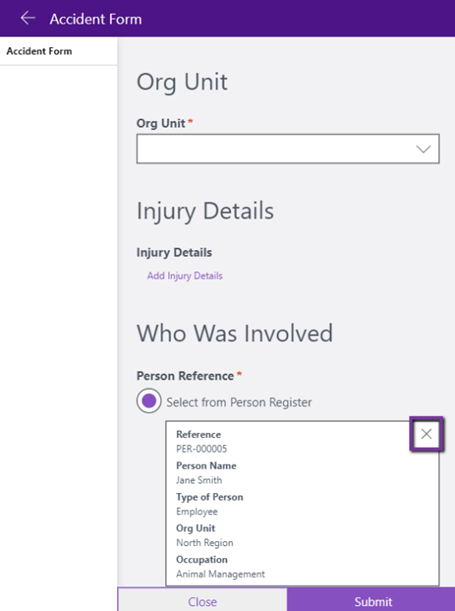
- The details of the person that is selected will appear on the form.
Once selected you can use the ‘x’ to remove the entry or click ‘Change Person Reference’ to change your selection.
FAQs
I cannot see a ‘Registers’ section on my portal questionnaire dashboard
- The module you have selected for your questionnaire does not have a link to the person register.
- The module you have selected for your questionnaire does have a link to the person register however there is a configuration issue. The ‘Select person from register’ checkbox may be hidden on your module form. You can enable this field via the module setup area in the Settings menu.
My questionnaire is set to auto process but goes into the portal queue
- Check the AssureGO+ user opted to select from the register. If they ‘manually entered’ person reference for any of the people modules, these records would then enter the portal queue.
- Check the person selected has not been deleted, archived, or made confidential from your person register.
- Review the configuration of the questionnaire. Some of your fields may be set to ‘direct input’ unchecked. This means the data cannot be entered directly into the corresponding field within Assure and the record will automatically enter the portal queue for manual intervention.
I cannot find the person I am searching for
- Is the portal masked? When you apply a masked parent to the portal it restricts visibility of org units, and subsequently the person register records.
- Has the person record been archived, deleted or is now confidential in main system Assure
- Does the person need adding to the person register
I cannot see the person register on AGO+ even though it has been enabled
- Make sure you are authenticated and online.
- Ensure the person reference field is included in the questionnaire as this is the field linked to the registers
Configuration Tips
If you have a unique identifier for your people/employees, such as employee ID, use the person reference field to hold this piece of data. This field is always searchable so you will be able to easily find people. System administrators can turn off the system automatic referencing in the system settings.
If you want to make use of the link into the person register, make sure the ‘select person from register’ fields are visible on the following forms in main system Assure:
- Activity Risk Assessment
- DSE Assessment
- Noise Assessment
- Job Hazard Analysis
- Incident Record
- Equipment Issue
- Air Emissions
- Release to Water
- Land Contamination
If you want to guide your users when entering person references manually, you can add guidance to this field by selecting “person reference” in the field section when editing your questionnaire and filling in the guidance text box.