Enabling the Person Register (the Assure module that stores and manages details of individuals within the organisation) on AssureGO+ (the Evotix mobile portal that allows frontline users to complete and submit EHS forms) allows mobile, logged-in users to select a person directly from the Person Register. This means frontline users can complete DSE assessments, Injury Accidents, Equipment Issue, Health Surveillance, or other forms on mobile, and immediately link the correct person before submitting.
This feature is configured per questionnaire, giving administrators granular control over which forms expose the Person Register. Behaviour at submission varies depending on whether the module is a People module or another module type, and whether the user is authenticated and online.
Prerequisites
- Users must be online and logged in to AssureGO+ to see the Person Register.
- Any user can be set up with a user account to AssureGO+ so they can authenticate, even if they do not have a licence for Assure Main System.
- The person reference field must be included in the questionnaire for register selection to function. Not all modules have the Person Register included and therefore some questionnaires are not able to have the Person Register added.
Supported Modules
- Employment History
- Health Surveillance
- Driving License Details
- Audit
- Activity Risk Assessment
- DSE Assessment
- Noise Assessment
- Job Hazard Analysis
- Incident Record
- Equipment Issue
- Air Emissions
- Release to Water
- Land Contamination
Authentication Behaviour
Configuration Steps
Option A: Adding the Person Register to an Existing Questionnaire
1. Navigate to Settings > Portal > Questionnaire.
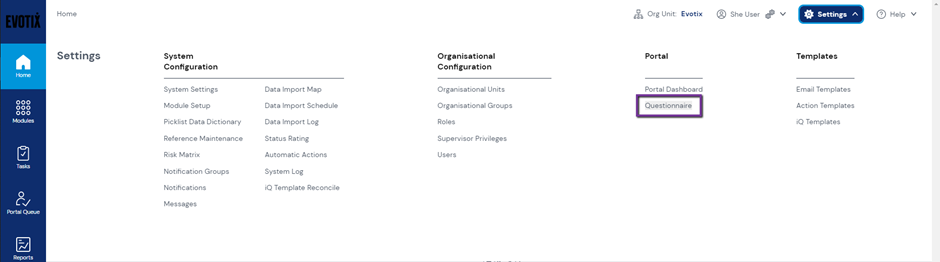
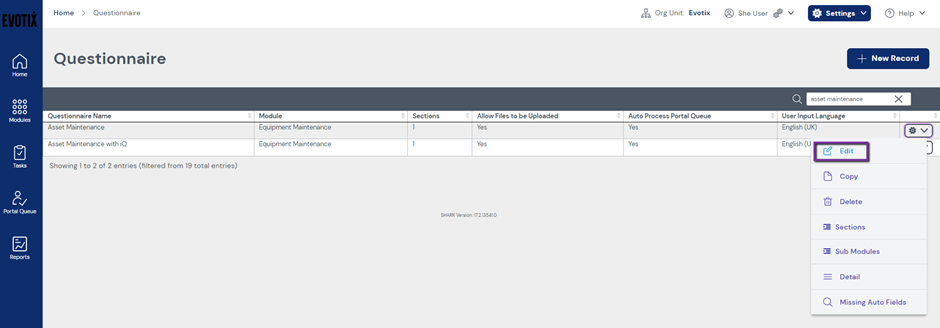
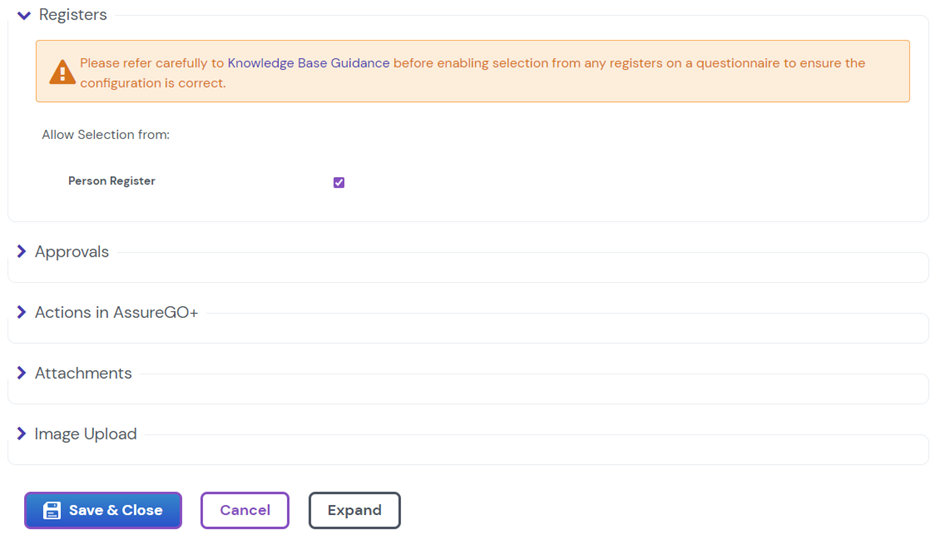
Option B: Adding the Person Register When Creating a New Questionnaire
1. Navigate to Settings > Portal > Questionnaire.
2. Build the new questionnaire and add it to AssureGO+. For full steps, refer to the How to configure questionnaires article.
3. Ensure the person reference field is included in the questionnaire, as this is the field linked to the registers.
4. In the Registers section of the questionnaire configuration, enable Person Register.
5. Select Save & Close.
Processing Behaviour by Module Type
People Modules
- If an authenticated user selects from the register, the record can auto-process into the corresponding module.
- If an unauthenticated user completes the form, or an authenticated user manually enters the person reference, the record will enter the Portal Queue and will need manual intervention to be processed.
- With this feature enabled, more forms will be able to be auto-processed.
Other Modules
- Audit
- Activity Risk Assessment
- DSE Assessment
- Noise Assessment
- Job Hazard Analysis
- Incident Record
- Equipment Issue
- Air Emissions
- Release to Water
- Land Contamination
How Person Register Selection Appears in AssureGO+
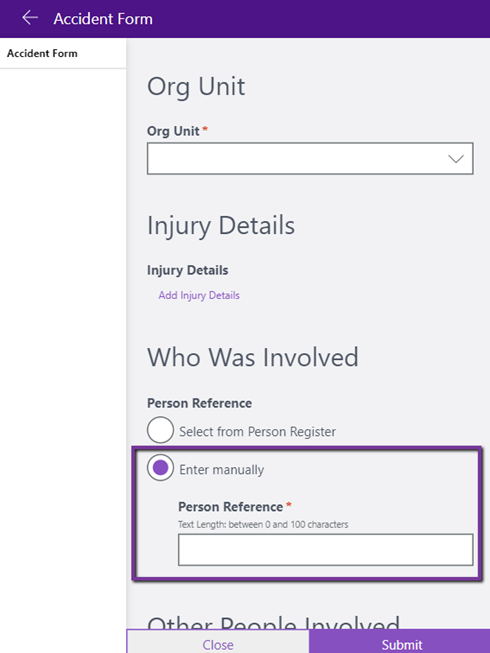
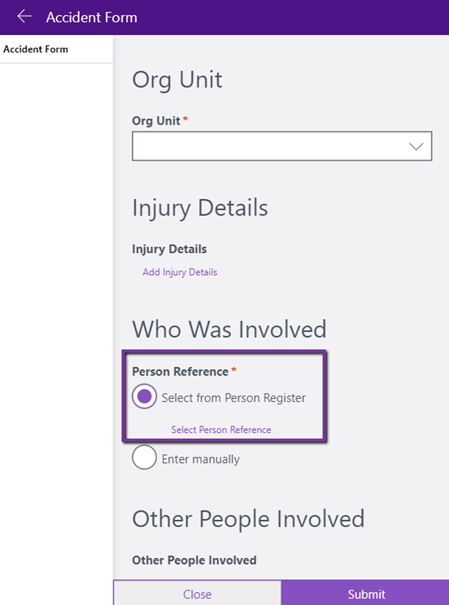
1. When the Person Register is enabled and the user is online and logged in, the user has the option to Select from the list or Enter Manually. If offline or unauthenticated, the user will only have the option to Enter Manually.
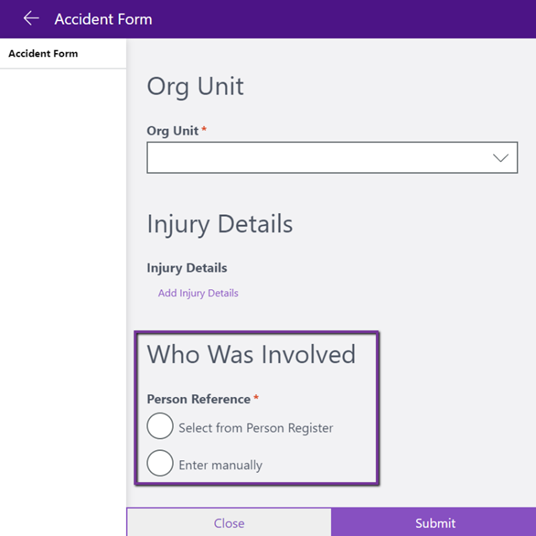
2. When entering manually, the user can type the person reference directly.
3. When selecting from a list, the Person Register displays, allowing the user to search and choose the correct person.
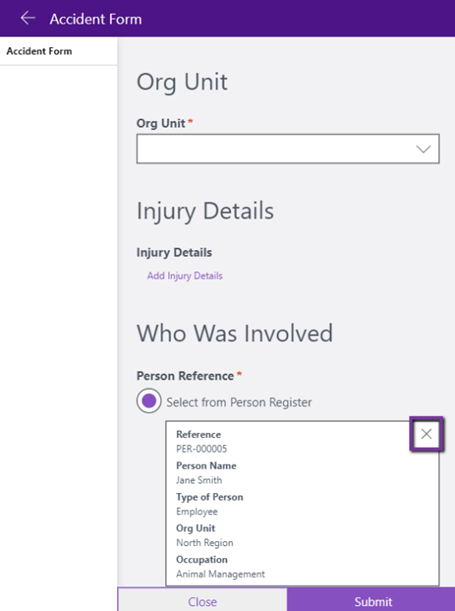
4. The details of the selected person appear on the form. Once selected, the user can use the X button to remove the entry or select Change Person Reference to update the selection.
FAQs
I cannot see a 'Registers' section on my portal questionnaire
- The module selected for the questionnaire does not have a link to the Person Register.
- The module selected does have a link to the Person Register, however there is a configuration issue. The Select person from register checkbox may be hidden on the module form. This field can be enabled via the Module Setup area in the Settings menu.
My questionnaire is set to auto-process but records go into the Portal Queue
- Check that the AssureGO+ user opted to select from the register. If the user manually entered a person reference for any of the People modules, those records will enter the Portal Queue.
- Check the selected person has not been deleted, archived, or made confidential in the Person Register.
- Review the configuration of the questionnaire. Some fields may have direct input unchecked. This means the data cannot be entered directly into the corresponding field in Assure, causing the record to automatically enter the Portal Queue for manual intervention.
I cannot find the person I am searching for
- Is the portal masked? Applying a masked parent to the portal restricts visibility of Organisational Units, and subsequently the Person Register records.
- Has the person record been archived, deleted, or is now marked as confidential in Assure?
- Does the person need to be added to the Person Register?
I cannot see the Person Register on AssureGO+ even though it has been enabled
- Ensure the user is authenticated and online.
- Ensure the person reference field is included in the questionnaire, as this is the field linked to the registers.
Configuration Tips
- If your organisation uses a unique identifier for people or employees, such as an employee ID, use the person reference field to hold this data. This field is always searchable, making it easy to locate people. System administrators can turn off the system automatic referencing in the System Settings.
- To make use of the link into the Person Register, ensure the Select person from register fields are visible on the following forms in main system Assure: Audit, Activity Risk Assessment, DSE Assessment, Noise Assessment, Job Hazard Analysis, Incident Record, Equipment Issue, Air Emissions, Release to Water, and Land Contamination.
- To guide users when entering person references manually, add guidance to the person reference field by selecting person reference in the field section when editing the questionnaire and filling in the guidance text box.
AI Metadata
- Product Area: AssureGO+ / Portal Configuration / Person Register
- User Role: Assure System Administrator, Assure Administrator
- Tags: AssureGO+, Person Register, Questionnaire, Portal, Register Selection, Authentication, Auto Process, Portal Queue, Person Reference, Mobile Forms
- Version/Region: All regions (UK, UK2, NA, ANZ)
- Important Synonyms: AssureGO+ = AGO+ = AssureGO Plus; Person Register = People Register = People module record; Questionnaire = AssureGO+ Form = Portal Form; Portal Queue = manual processing queue; Person Reference = person reference field = employee ID field; Authenticated = logged in; Unauthenticated = not logged in / guest
- Suggested Embedding Keywords: enable Person Register AssureGO+, person register selection mobile form, AssureGO+ questionnaire register configuration, select person from register AssureGO+, person reference field questionnaire, auto process portal queue person register, AssureGO+ authenticated user person register, DSE assessment person register mobile, Incident Record person register AGO+
- Relevant Modules: AssureGO+ (Portal); People and Training (Person Register); Incident Management; Risk Management; Health Surveillance; Environmental Management
- Cross-Module Implications: This configuration spans AssureGO+ (Portal questionnaire settings) and multiple Assure modules (Incident Record, Risk Assessment, Health Surveillance, and others). Auto-processing behaviour differs between People modules and other modules. The Person Register visibility is governed by the authenticated state of the user and the portal masking configuration set in Organisational Configuration.